 AI Upscale
AI Upscale › Guides
How to enlarge an image without losing quality
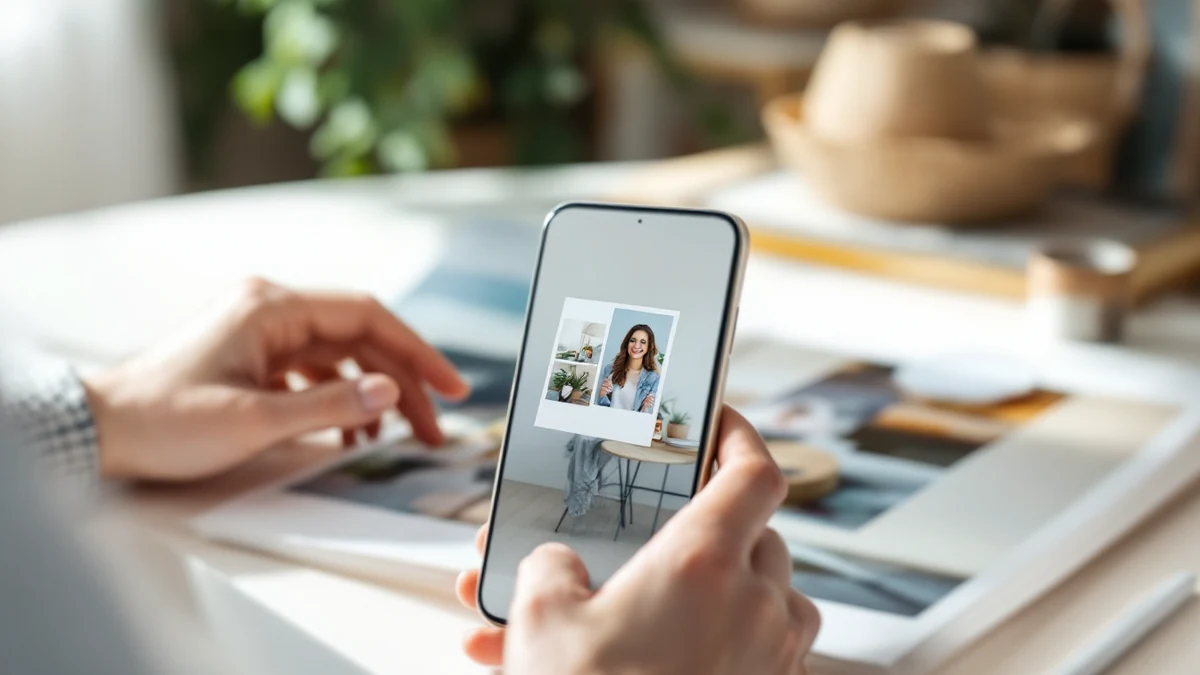
Classic resizing makes images bigger but blurrier — every editor just stretches the same pixels. That's why enlarged prints come back looking soft or blocky.
AI upscaling is different: the model generates new, plausible detail as it grows the image, so a 4× enlargement still looks sharp at poster size.
Fix it in minutes with AI Upscale
Free to try — no watermark on standard results.


Step-by-step
- Get the app. Download AI Upscale free from the App Store or Google Play.
- Pick a photo. Import any image from your camera roll, even old scans and screenshots.
- Choose mode & factor. Choose 4× for standard prints and 6×–10× for posters or heavy cropping. Object mode works great for products and landscapes.
- Enhance & save. Let the AI work for a few seconds, compare before/after, then save or share.
Pro tips
- Printing? Aim for at least 300 DPI at your target size — a 10×15 cm print needs roughly 1200×1800 px.
- Crop first, then upscale — you'll spend the pixels where they matter.
Try it on your own photos
Free to try — no watermark on standard results.